在Windows上安装MongoDB
MongoDB是一个通用的,基于文档的分布式数据平台,专为现代应用程序开发人员和云构建。
MongoDB被归类为NoSQL数据库。它使用具有可选架构的类似 JSON 的文档。
您可以将MongoDB用作云部署或本地安装。
在本教程中,我使用Windows上的MongoDB社区版将其安装为本地安装。
下载蒙戈数据库
MongoDB具有安装向导和无人值守安装选项。在本教程中,我们使用默认选项通过安装向导进行安装。
要下载MongoDB:
- 转到MongoDB下载页面。
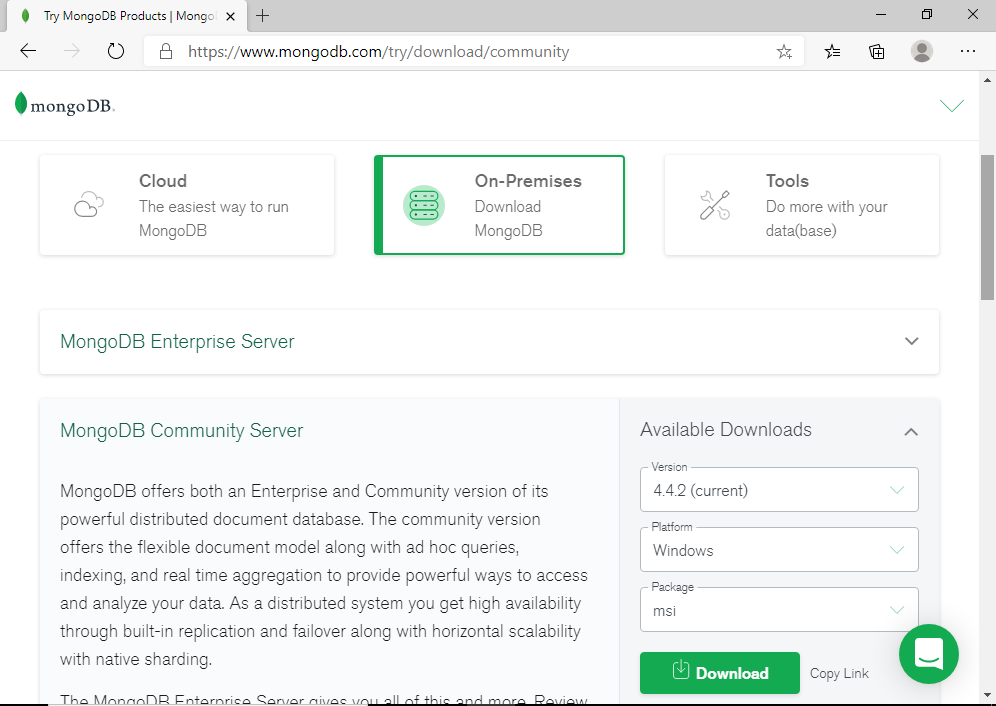
- 选择**“本地”**选项。
- 检查是否为下载显示正确的选项(即选择当前版本、选择 Windows 并选择 msi 包)。有关示例,请参阅上面的屏幕截图。
- 单击下载。
这些说明基于本教程时的 MongoDB 下载页面。如果在阅读本文时它已更改,则可能需要对其进行修改。
以下是本教程时“下载”页面的外观:
安装 MongoDB
下载后,您可能会在“下载”页面底部看到下载的文件:
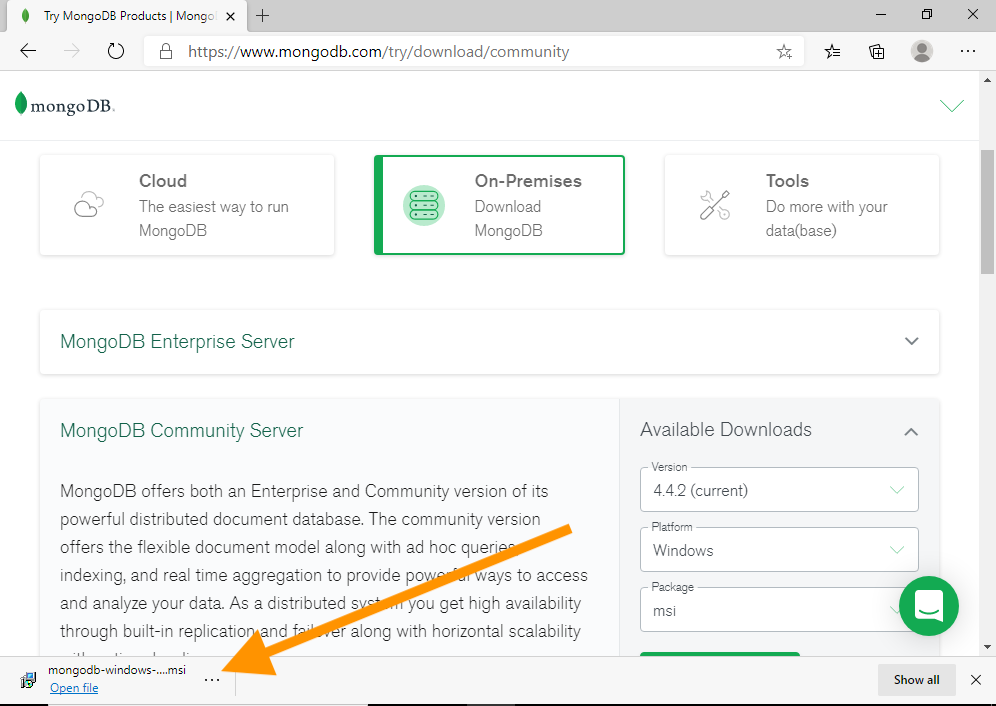
单击打开文件。
这将打开安装程序:
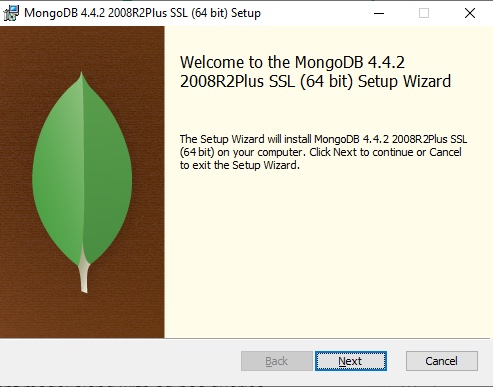
单击下一步。
这将我们带到许可协议屏幕:
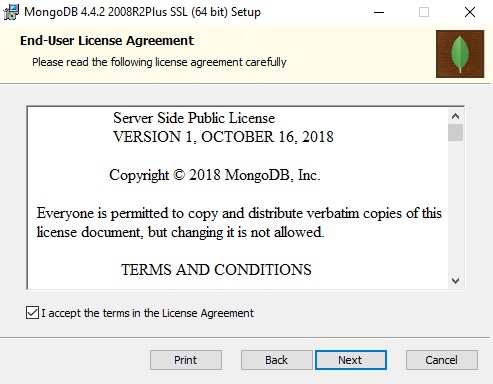
If you agree to the terms and conditions, check I accept the terms in the License Agreement, then click Next.
Which brings us to the Choose Setup Type screen:
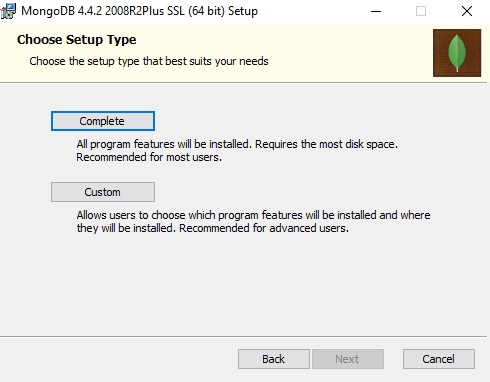
This screen allows you to choose whether or not to install the (default) complete setup, or choose a custom setup (where you choose the program features to be installed).
For this tutorial, click Complete.
This automatically opens the Service Configuration screen:
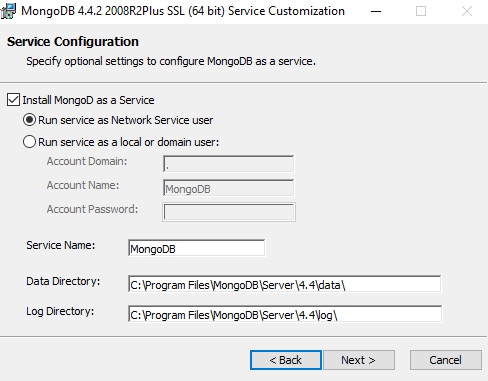
At this point, you have a choice of running MongoDB as a network service, or as a local or domain user.
For this tutorial, we’ll leave it at the default (i.e. run it as a network service).
Click Next >.
Which brings us to the Install MongoDB Compass screen:
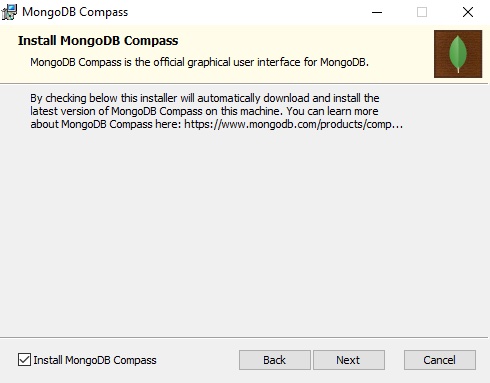
MongoDB Compass is a GUI tool for administering MongoDB. You don’t have to install this, but for the purposes of this tutorial, we’ll install it.
The Install MongoDB Compass option is checked by default. If you’re happy to install MongoDB Compass, leave it checked. Otherwise uncheck it.
Click Next.
This brings us to the final screen before installation:
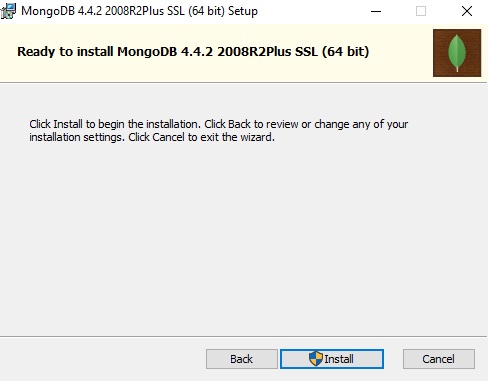
If you need to make any changes, now’s your last chance to go back and make them, before returning back to this screen.
Click Install to install MongoDB.
You might get the usual User Account Control confirmation box:
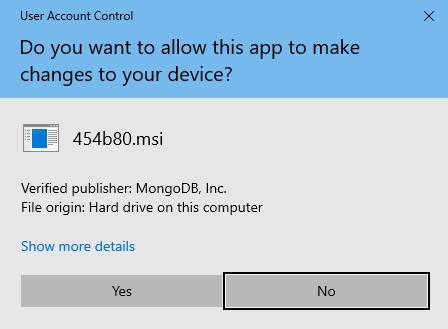
Click Yes to allow the app to make changes to your device.
You may also get a notification that certain files that need to be updated by this setup are in use:
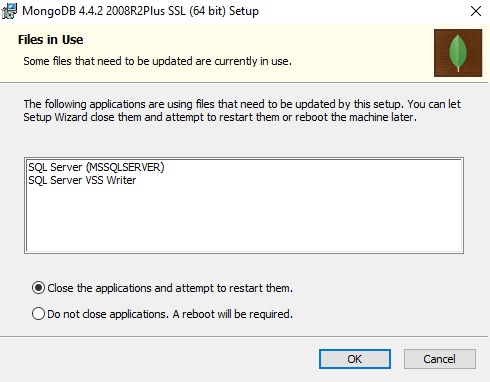
In my case, I have SQL Server installed on this machine, and it’s using files that the MongoDB setup needs to update.
You can choose either option here, but for this tutorial, we’ll leave it at the default (i.e. Close the applications and attempt to restart them).
Click OK.
The setup now goes ahead and installs MongoDB and MongoDB Compass. It may take a while. During this tutorial, it took around 10 to 15 minutes, and it seemed to get stuck on installing MongoDB Compass, but it finally worked out.
Once installed, the final screen is displayed, with MongoDB Compass in the background:
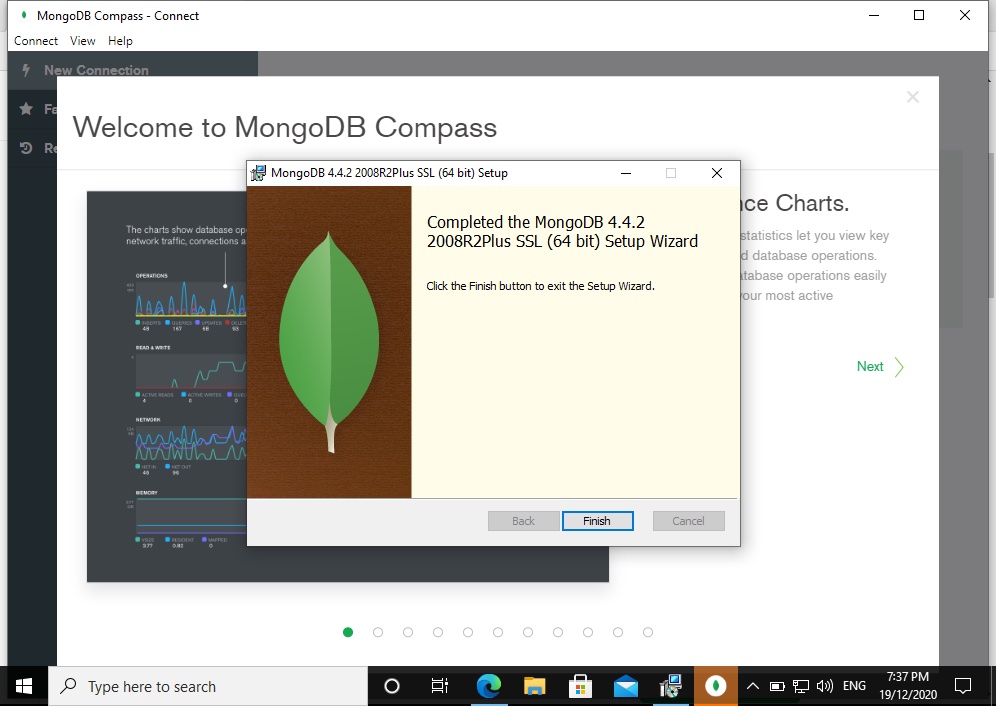
Click Finish.
When you install MongoDB as a Windows Service, the service is started upon a successful installation.
You can now go ahead and connect to MongoDB.
You can connect to MongoDB via the mongo shell (which is included in the installation), or with the MongoDB Compass GUI tool (if you included it in the installation).
Connect to MongoDB via the mongo Shell
The mongo shell is an interactive JavaScript shell interface to MongoDB, and is included with the MongoDB installation.
To start using MongoDB via the mongo shell, open a command prompt and enter the following:
"C:\Program Files\MongoDB\Server\4.4\bin\mongo.exe"
That will connect the mongo.exe shell to the running MongoDB instance.
Alternatively, you can navigate to that location and double-click the mongo.exe file.
Once connected, you can type to bring up the interactive help options.help
Connect via MongoDB Compass
If you included MongoDB Compass in the installation, you can use it to connect to MongoDB.
You will usually find MongoDB Compass in the Windows Start menu, but having just installed MongoDB, MongoDB Compass is already sitting in the background waiting to be used.
After we closed the installer at the last step of the installation, the Welcome screen of MongoDB Compass remained:
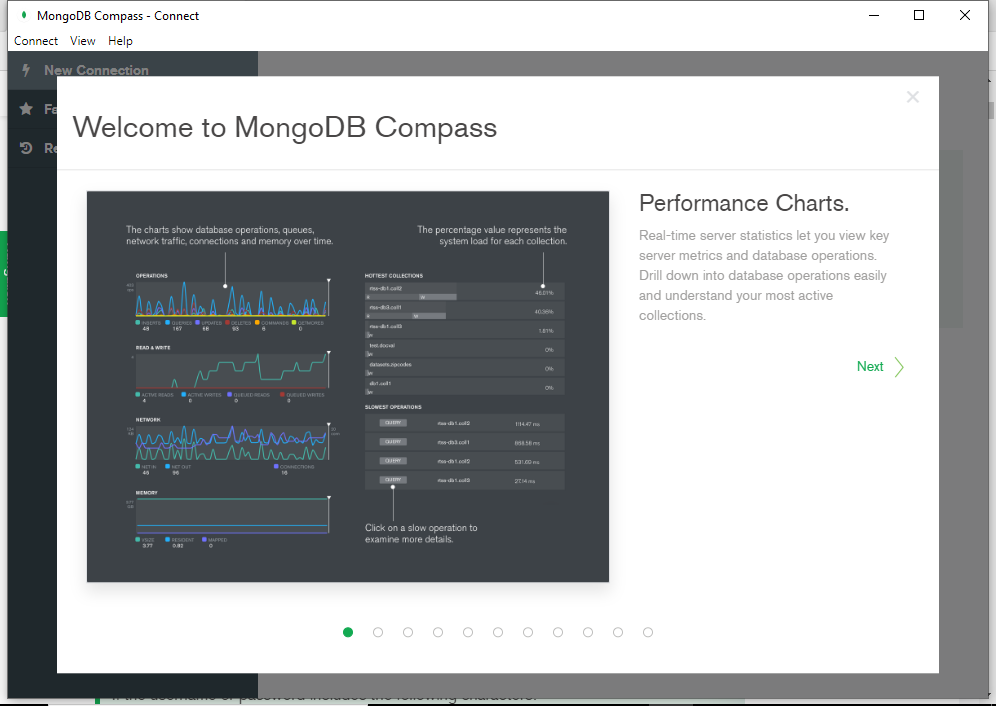
You can use the Next > buttons to check out some of the capabilities of MongoDB. Once done, close this overlay by clicking the X in the top right corner.
Which will probably bring you to the Privacy Settings dialog:
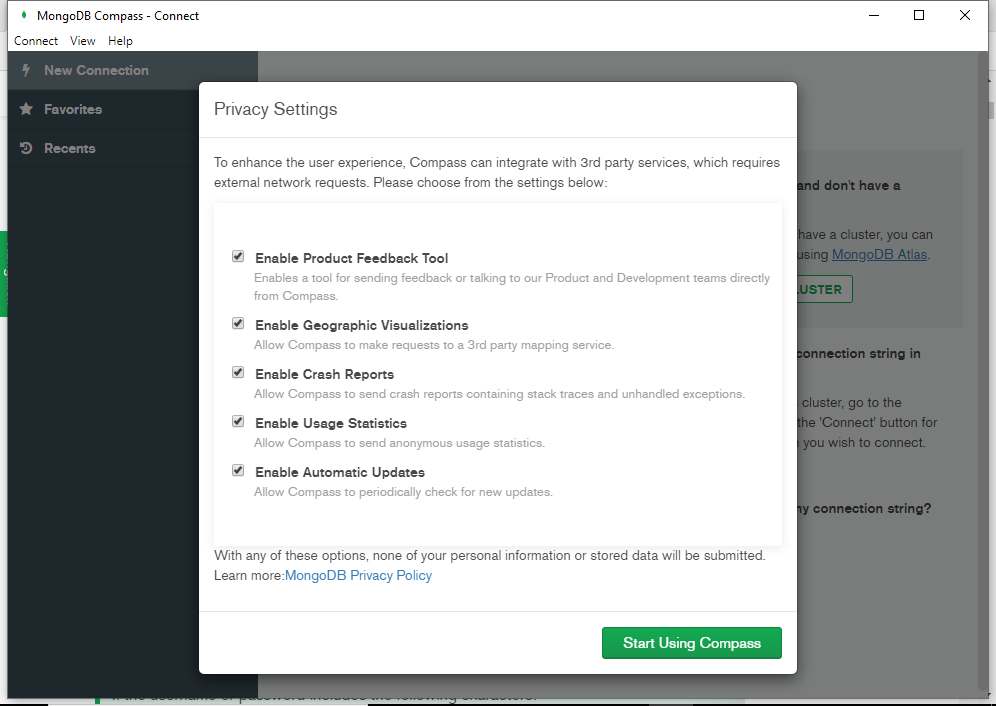
Uncheck anything you don’t want and then click Start Using Compass.
This brings us to the New Connection screen:
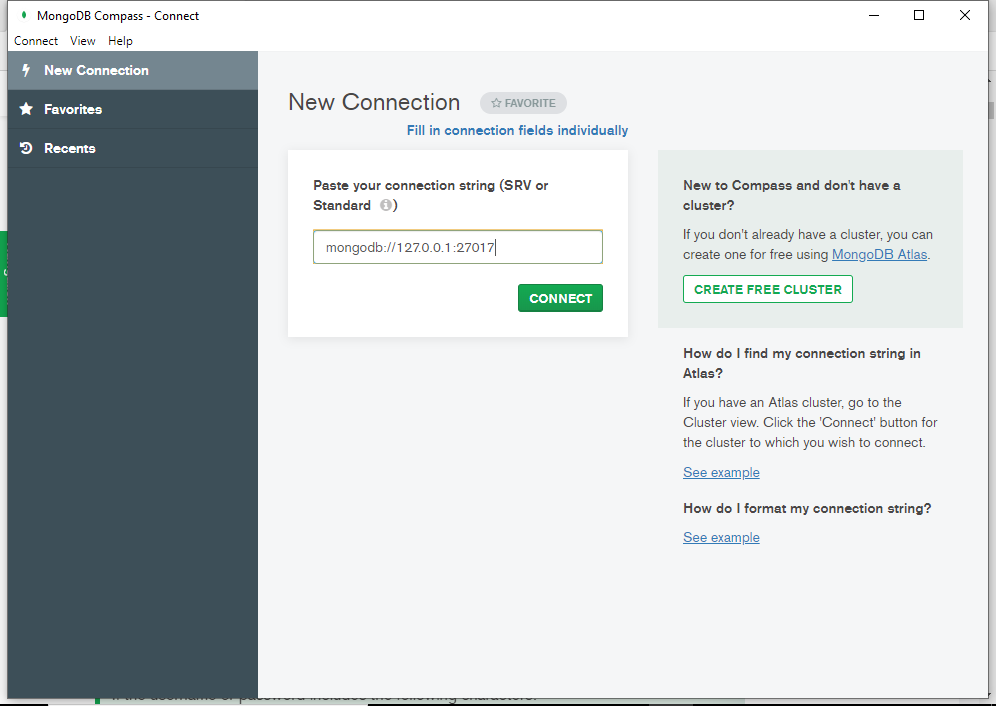
如果按照本教程进行操作,则应该能够使用与上图屏幕截图中相同的连接字符串进行连接。重申一下,这里是:
mongodb://127.0.0.1:27017
这将对不强制实施访问控制的独立部署使用标准连接字符串格式。
有关各种连接字符串 URI 格式的详细概述,请参阅 MongoDB 文档网站上的连接字符串 URI 格式。
输入连接字符串后。单击连接。
如果连接成功,您现在应该看到如下所示的内容:
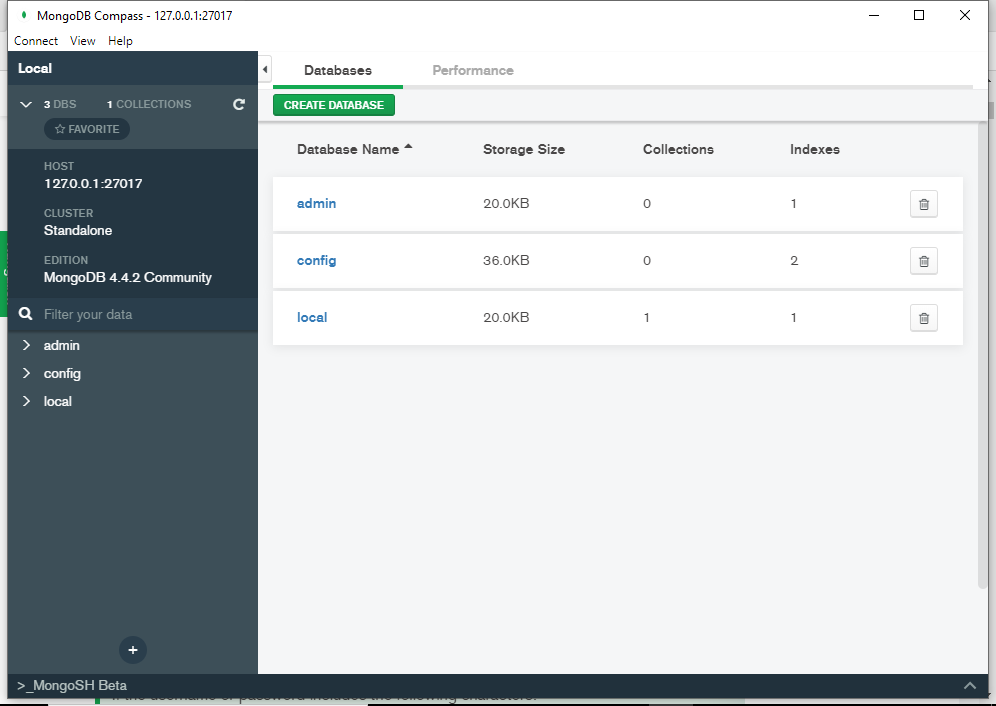
您刚刚通过Compass连接到MongoDB。